Setup and operations
Restarting a Trading Bot: A Recovery Checklist for Your VPS
The VPS is online, the platform opens, and quotes are moving. That is encouraging, but it does not prove that a trading robot is ready to resume. A position may have changed while the application was offline. An order may have reached the broker without its response reaching the robot. A second copy may already be running elsewhere.
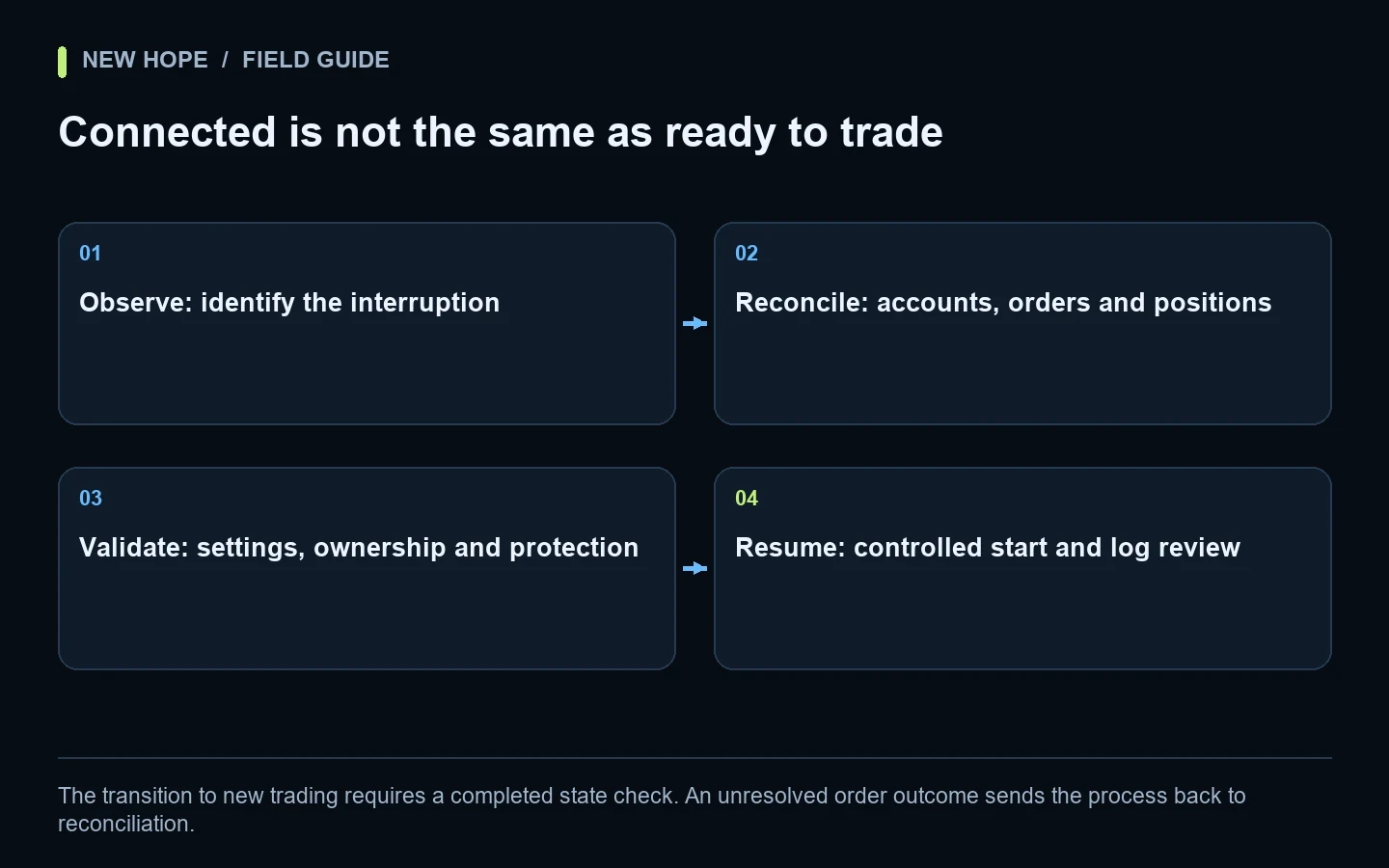
A useful trading bot restart checklist treats recovery as a reconciliation task. First establish what exists now; then confirm what the software is allowed to do next. The procedure below is a general operating framework, not a claim that every robot implements each feature automatically. Confirm the behaviour of your specific version and connection.
The transition to new trading requires a completed state check. An unresolved order outcome sends the process back to reconciliation.
Identify what actually stopped
Distinguish a lost remote-desktop connection, a closed application, a restarted operating system, a broker disconnect and a stalled data feed. They are different incidents. If only the remote session became inaccessible, the trading process might still be running. Starting another copy because you cannot see the first one can create a second problem.
Record the last known healthy time, first observed failure, affected account and relevant log messages. Write down whether the strategy was active, waiting, stopping or already disabled before the interruption. A later restart should not silently override an intentional stop.
For MetaTrader EAs, MetaQuotes documents initialization events after several changes, not just a computer restart. Deinitialization reasons include changes to inputs, charts, templates and accounts. An external trading application can have a different lifecycle, so do not transfer EA assumptions to it without checking.
Separate new entries from protection of existing positions
“Stop the robot” is too vague for a recovery instruction. Does that stop new entries, stop all position management, close positions, or wait for a configured exit? Use the exact product command and confirm its effect before an incident. If selective entry pausing is supported, it can help isolate recovery while preserving necessary management.
Do not disable all management simply because a checklist says to pause trading. Where the software cannot separate these functions, use a support-approved procedure for existing exposure. Also distinguish controls held by the broker from controls executed locally.
MetaTrader's trading documentation distinguishes server-held Stop Loss and Take Profit from the platform's local trailing-stop process. The existing server instruction and a future local adjustment are different things. Verify the actual protection on each position; no stop mechanism guarantees a particular fill price in all market conditions.
Step 1: verify the account before the strategy
Confirm the broker or exchange, exact server, account identifier, demo or live status, currency and account mode. A remembered password or successful login does not establish that the intended account is selected. If several terminals or workspaces exist on one VPS, label them so an operator can distinguish them without guessing.
Check that the required market data is current and that the connection has the permissions needed for the intended operation. Do not equate a green network icon with permission to place or manage orders. Verify the relevant trading session and instrument availability as well. A correct account with a closed market is not the same condition as a broken connection.
Step 2: reconcile positions, orders and recent activity
Make three lists: positions that are open now, orders still awaiting execution, and recent executions or cancellations around the interruption. Compare them with the robot's last recorded state. Distinguish position size from pending-order size; an apparently empty position list does not prove that nothing can execute later.
Use the account model correctly. Netting and hedging require different inventory logic; see the MT5 account-mode guide. Developers also need fresh observations: MetaQuotes notes that PositionSelect copies position data, so an earlier selection can become stale. An operator should likewise refresh the account view rather than trust a screenshot taken before reconnecting.
Identify which positions belong to which strategy using the identifiers supported by that connection. Do not assume every position on an account belongs to the robot being restarted. Manual trades and another strategy's positions may coexist. Ownership rules should be documented before automated recovery is enabled.
The difficult case: an order response was lost
Consider a hypothetical timeline. At 10:00:00 the bot sends a buy request. At 10:00:01 the network fails. At 10:00:05 the interface reports a timeout. The timeout alone does not establish whether the broker accepted, rejected or executed the request.
Immediately sending the same request again may create duplicate exposure. Instead, use the order or client-request identifier where available, then compare server-side orders, execution history and current positions. If the outcome remains unresolved, hold new entries and escalate through the defined support procedure. Do not convert “unknown” into “failed” merely to make the restart complete.
Even an accepted request is not always a completed trade. The MQL5 OrderSend documentation explicitly distinguishes acceptance for processing from execution. Our order-rejection guide helps separate a definite rejection from an uncertain outcome that needs reconciliation.
Step 3: check configuration and duplicate instances
Compare the installed version, configuration file, symbols, volume settings and account mapping with the intended record. A program can reopen successfully with an older preset or a default value. Save configuration names and dates so a comparison does not depend on recognising the appearance of a settings window.
Check for another running instance on the VPS, a second machine or a previously configured startup task. Decide which instance owns the account or strategy. Do not test ownership by allowing both to trade and watching what happens. The expected arrangement should be explicit and verifiable before new orders are enabled.
Connection-specific recovery also matters. A terminal session and a direct API session may expose different identifiers and reconnection mechanisms. The cTrader FIX API versus Open API comparison explains why connection choice belongs in the setup record.
Step 4: resume under observation
Resume only after the account state and intended configuration agree. Check the product's actual mode, not simply whether its window is open. Watch the next permitted action and its resulting account state. If a strategy is waiting for a signal, an absence of trades is not automatically a failure that needs another restart.
Record the recovery time, operator, checks completed and any unresolved limitations. Then compare the first post-recovery log entries with the normal sequence. This creates evidence for the next incident and helps separate a recurring cause from an unrelated market condition.
Practise with a controlled recovery drill
Run disruptive tests only in an isolated demo or other approved test environment. Do not deliberately interrupt a customer's live account to validate this checklist. Define the expected result before each exercise and use the smallest scenario that demonstrates the behaviour.
Test scenario | What to observe | Pass evidence |
|---|---|---|
Restart with no exposure | Correct account and settings reload | No unexplained order at startup |
Restart with an open position | Existing position is identified | No duplicate opening; management follows the documented rule |
Pending order during interruption | It may remain pending or execute | Server state is reconciled before a replacement |
Partial execution | Filled and remaining quantities differ | Recovery uses the actual quantities |
Second instance attempted | Ownership conflict is detected | Only the intended instance can send new orders |
The table describes acceptance criteria to verify, not features automatically provided by NH PRO or any other product. Keep a failed case open until its behaviour is explained. A startup screenshot is weaker evidence than an account history showing the expected outcome.
NH PRO video: understand the strategy states
In the English NH PRO video, part 2 at 16:07, the team discusses strategy states and finishing commands. Use that segment to understand the interface before following the current instructions for your installed version. It is a supporting demonstration of controls, not a complete network-failure recovery test.
Keep the NH PRO setup guide beside the account and configuration record. For the hosting layer, the VPS guide explains why stable hosting belongs in the deployment plan. A VPS helps keep software available, but availability and correct trading state remain separate checks.
Prepare the handover before the next incident
For an NH PRO deployment, agree who can pause entries, who can inspect existing exposure and who approves resumption when a request outcome is uncertain. Keep support contacts, configuration references and relevant logs accessible without exposing account passwords in shared notes. The aim is a calm, documented recovery process rather than repeated restarts until a status turns green.
Related video
Watch the referenced video on YouTube
More articles